Avid Media Composer
INSTALLING AND LICENSING AVID MEDIA COMPOSER
Install Media Composer and the appropriate plugins. Installers can be found by clicking on the link below (using UNI/Password)
https://drive.google.com/drive/folders/1jWFAv5eR-M-LbIZVoyCFSHWWZQzaMdVe
Make sure you have a compatible computer and operating system.
The DMC is running macOS 12.6.4 with Media Composer 2022.12
- Media Composer 2022.12 also works on
-
Most recent qualified OS:
-
13.1 Ventura
-
12.6 Monterey
-
11.7 Big Sur
-
10.15.7 Catalina
* Mojave no longer supported
-
If you have a different MacOS find which Media Composer version works on this page:
https://www.alwaysediting.com/avid-mc-versions.html
PC USERS – Its kinda complicated…
Media Composer 2022.12 works on
- Win 11 64-bit 21H2 or later, Pro & Enterprise
- Win 10 64-bit v2004 or later, Pro & Enterprise
Check if your PC hardware is supported in this document:
Activating Media Composer Ultimate 2022
To activate with Columbia’s Floating License:
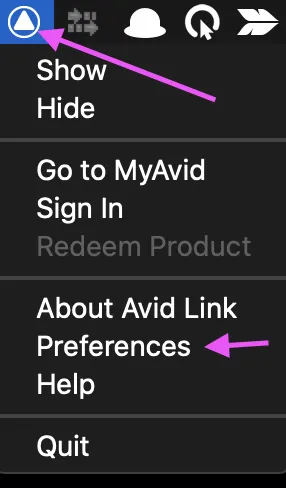
1. Locate the Avid Link icon (depicted as a triangle or 'Triforce') in your computer's Menu Bar.
2. Click on this icon and select 'Preferences' from the dropdown menu.
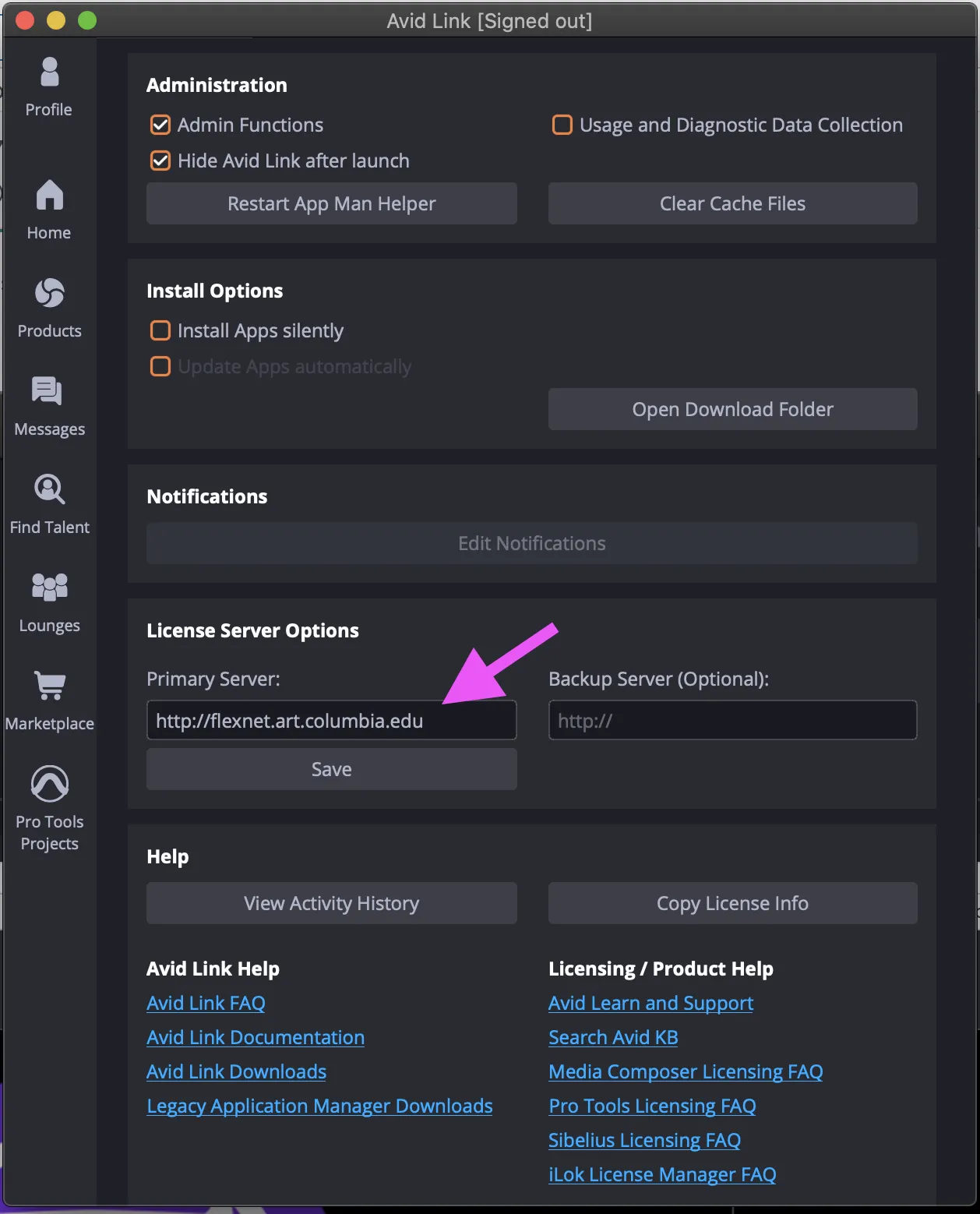
3. In the 'Preferences' window, look for the field labeled 'Primary License Server'.
4. Enter the following License Server Address into this field: http://flexnet.art.columbia.edu
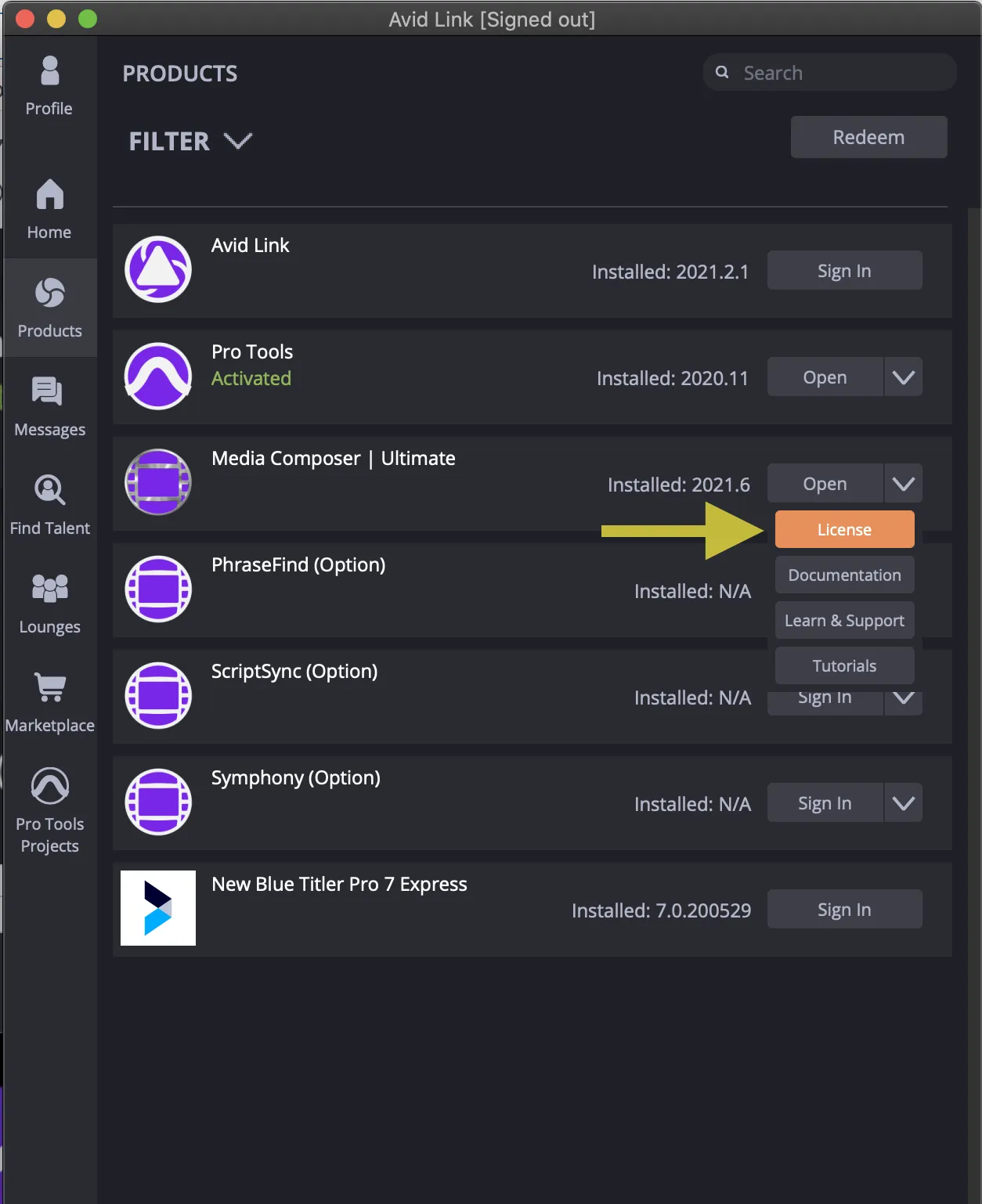
5. Now, navigate to the 'Products' tab.
6. Look for the dropdown menu in the Media Composer Ultimate Row, select the 'License' option.
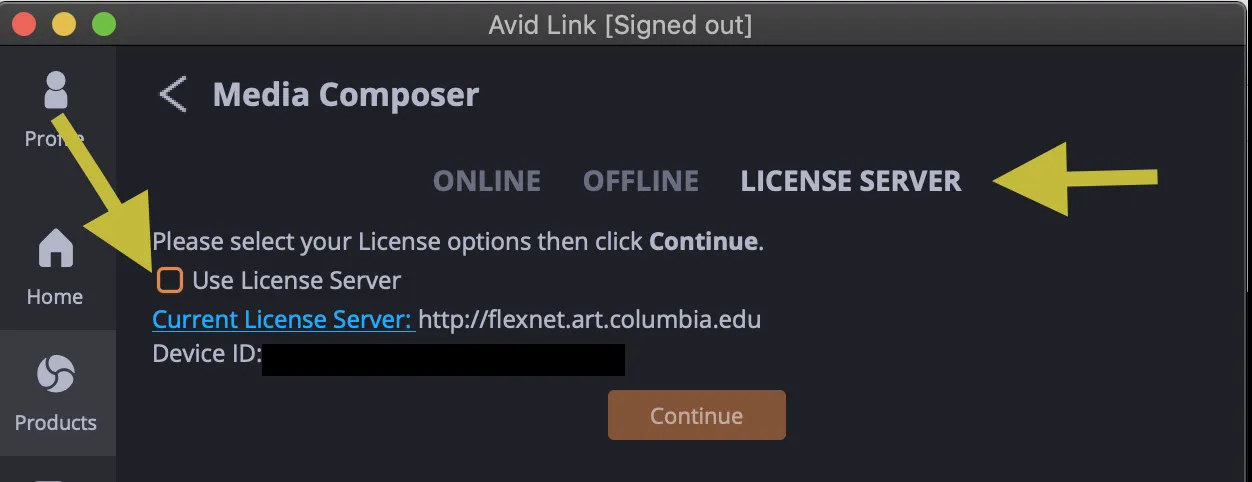
7. Look for the 'License Server' section, located to the right of the 'Online and Offline' Tabs.
8. Look below and tick the checkbox labeled 'Use License Server'.
9. Finally, click on the 'Continue' button to apply these changes and activate your software."
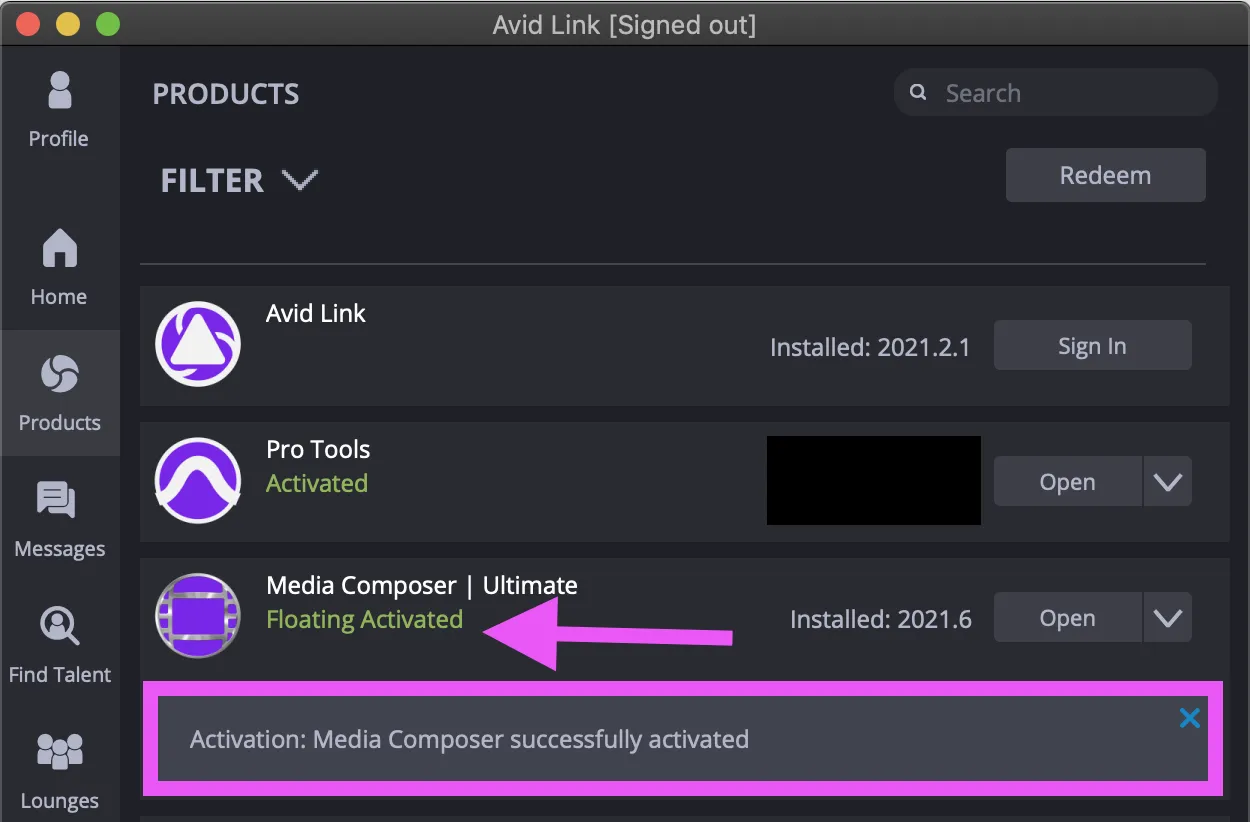
10. Avid Media Composer will now be licensed and ready to launch.