Installing and Licensing Adobe Creative Cloud
Enrollment in select School of the Arts courses entitles you to a license for Adobe Creative Cloud. If you have questions about your eligibility, please consult your program leader or professor for more information.
If you are eligible, please follow the below steps to download and install it.
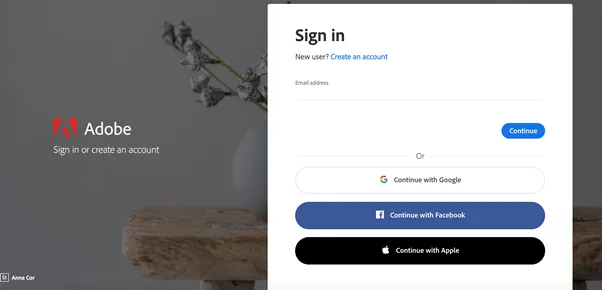
Visit https://creativecloud.adobe.com and use your [email protected] email address
Do not use Continue With Google - it won't work.
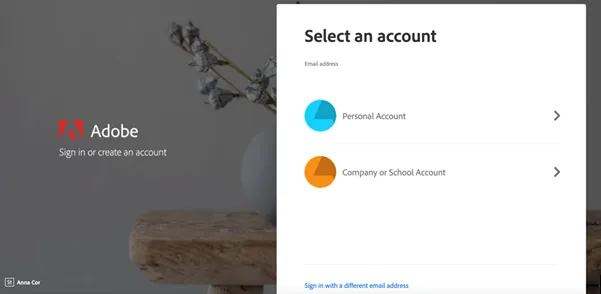
If prompted, select School Account and then enter your password.
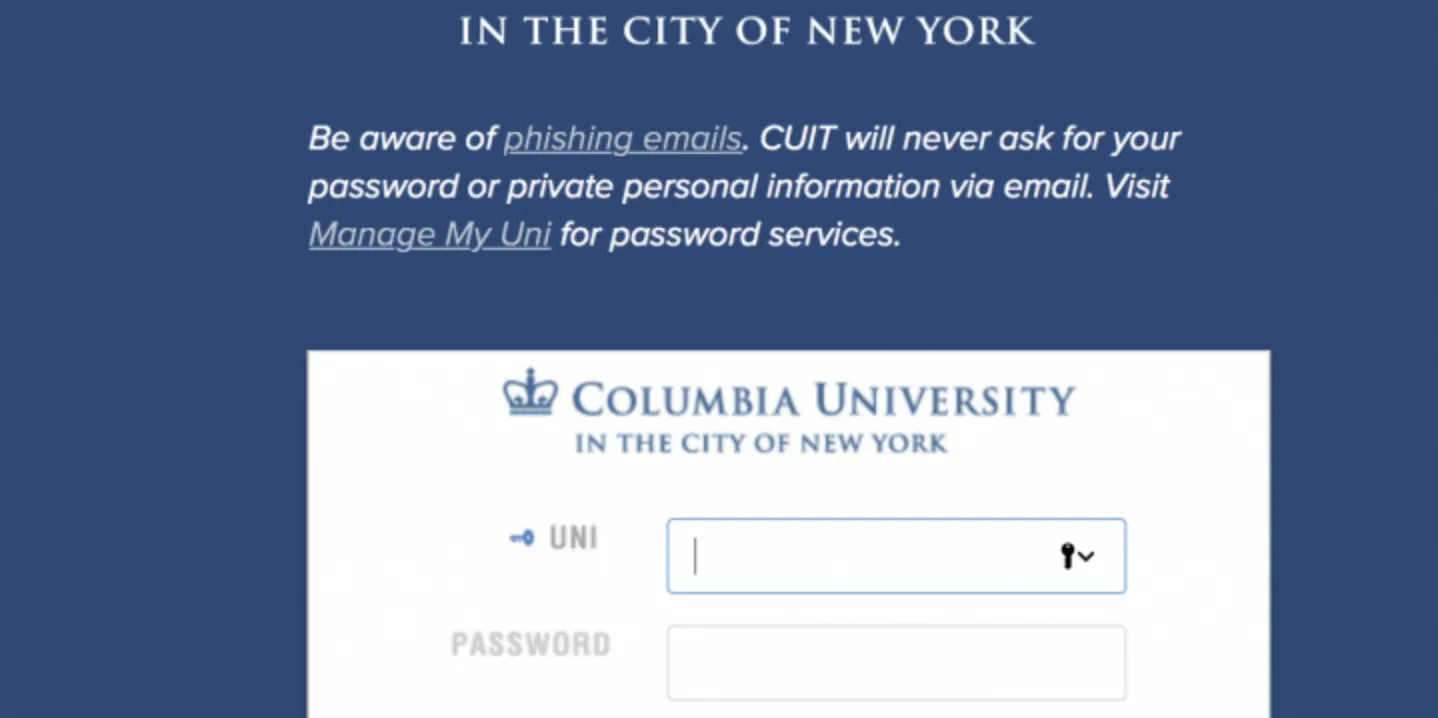
You will be redirected to a login screen. Enter your Uni and Password.
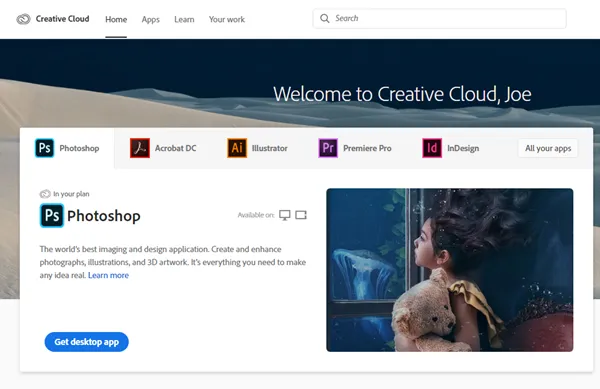
From the Creative Cloud website, browse for and download your desired app. Click Apps on the top of the page to view all apps.
For more information on how to download or install apps, see Download and Install Creative Cloud apps.
If you have Creative Cloud installed on your computer using a different account please see how to uninstall Creative Cloud here.
For Higher Education students to continue developing skills, Adobe offers free “Daily Creative Challenges”. These are guided projects where participants receive creative prompts and connect with pros, mentors, and other students for feedback and support. Click on the app name to learn more: Photoshop, XD and Illustrator. Also, for inspiration and over-the-shoulder learning, watch pros share their creative process on Adobe Live daily at www.behance.net/adobelive.
For installation Support questions please visit email [email protected]
Have a personal account before joining Columbia? Read about migrating assets with the link below:
https://helpx.adobe.com/africa/enterprise/using/migrate-assets-to-enterprise-account.html
Need to migrate assets from your Columbia Account to your personal account after graduation? Please check this link below:
https://helpx.adobe.com/enterprise/using/migrate-student-assets.html