Installing Final Draft - Cloned
Columbia Students get Final Draft at no charge as long as you use our customer number.
Here are the steps for downloading and installing it.
First Download Final Draft for Mac here and Final Draft for Windows here.
If the installation doesn’t start automatically, the installer will typically be saved in your Downloads folder.
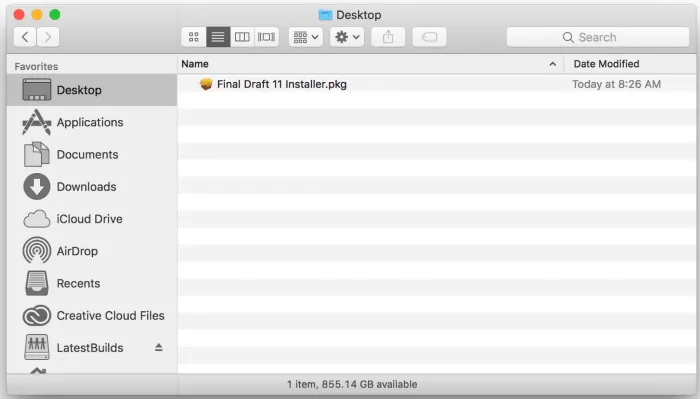
Double-click the finaldraft120xMac.zip file to begin your installation. If you only see the .zip file,
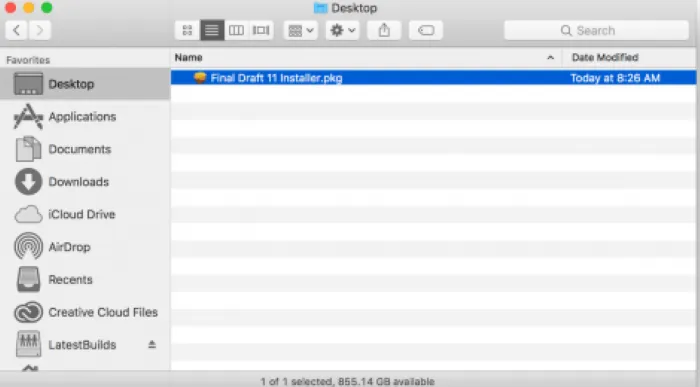
double-click it and the Final Draft 12 Installer.pkg file will be displayed. Double-click the icon to begin the installation.
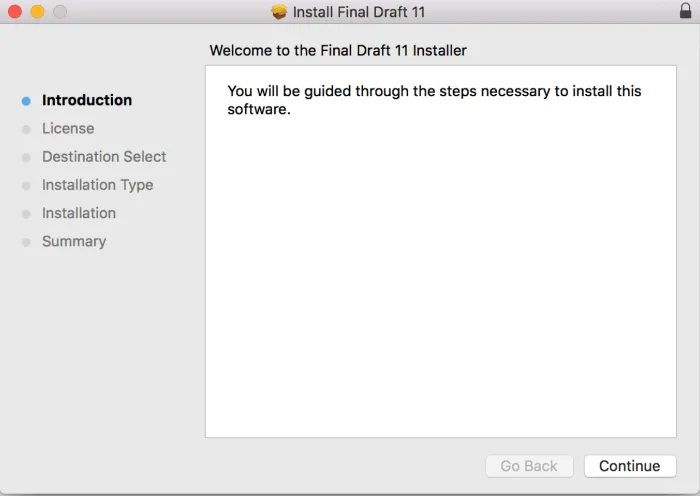
Click Continue to begin the installation.
Read the End User License Agreements, then click Continue
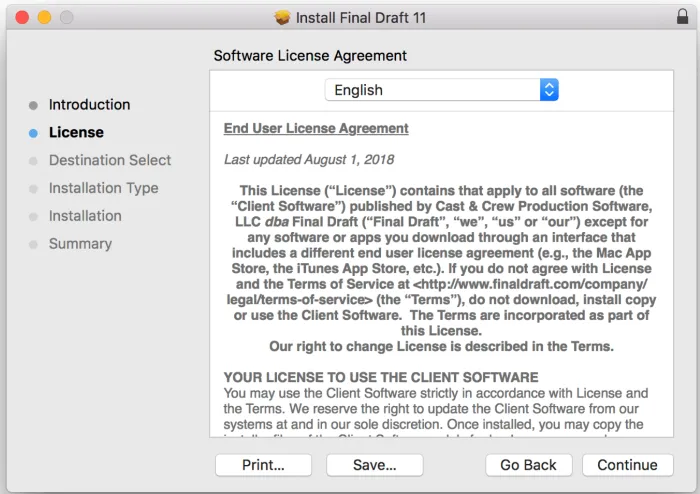
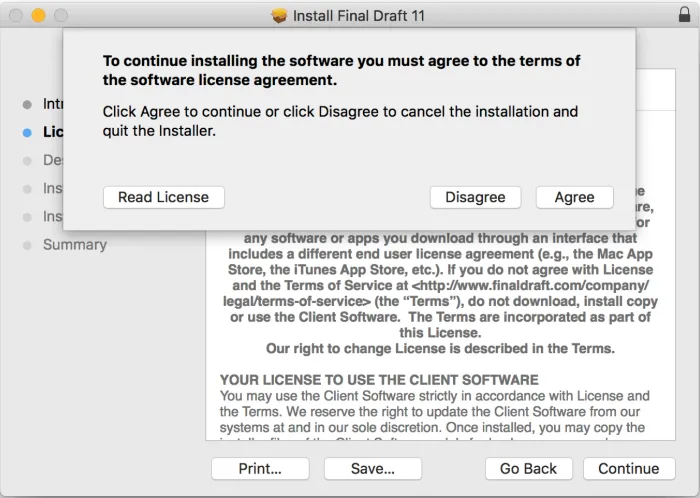
Agree to the End User License Agreements;
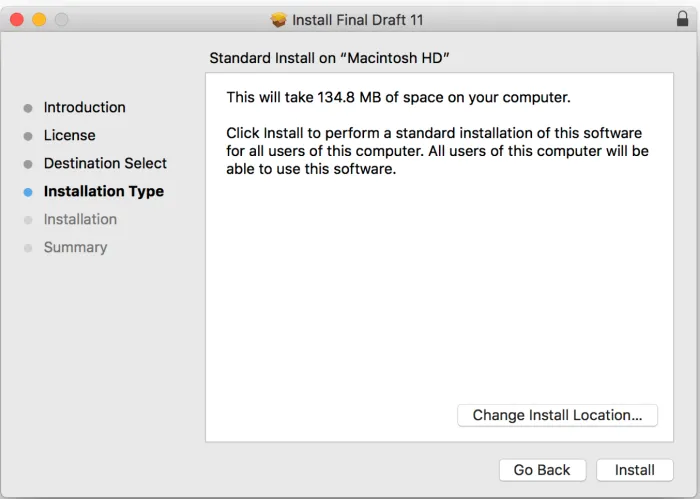
Click Install
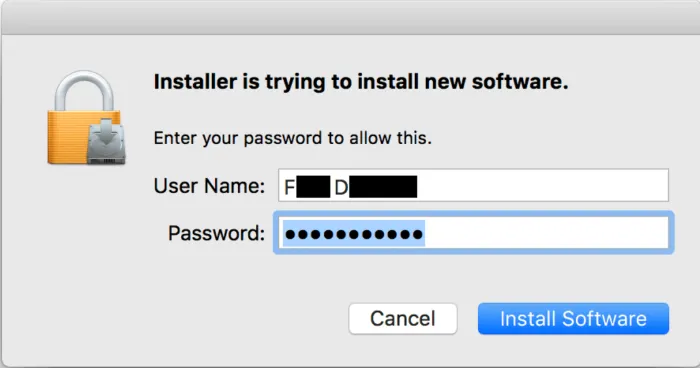
Enter your Mac User Name and Password, then click Install Software
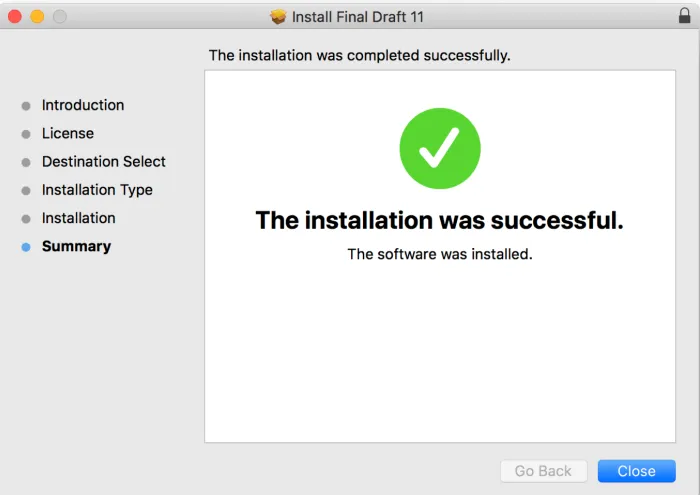
The program will be installed. Click Close to exit the installation process.
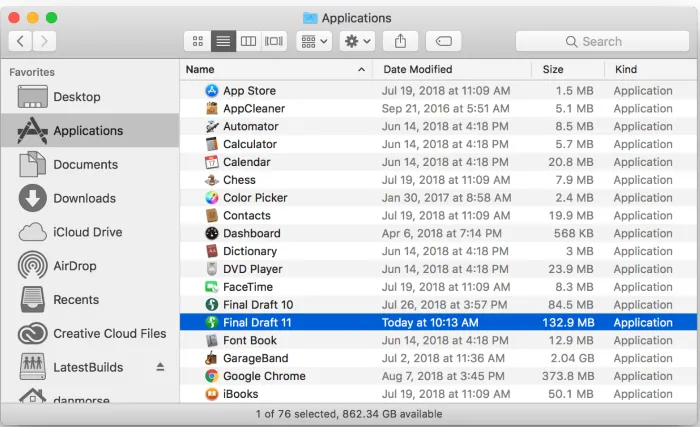
Locate Final Draft 12 in your Applications folder or Launchpad and double-click the application icon.
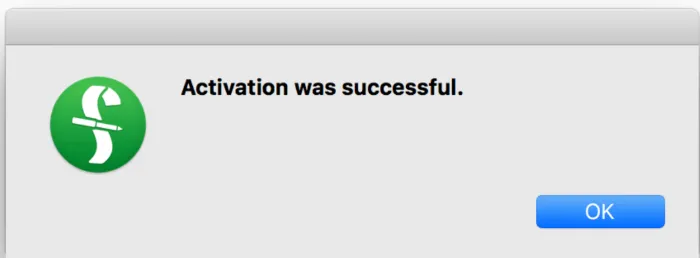
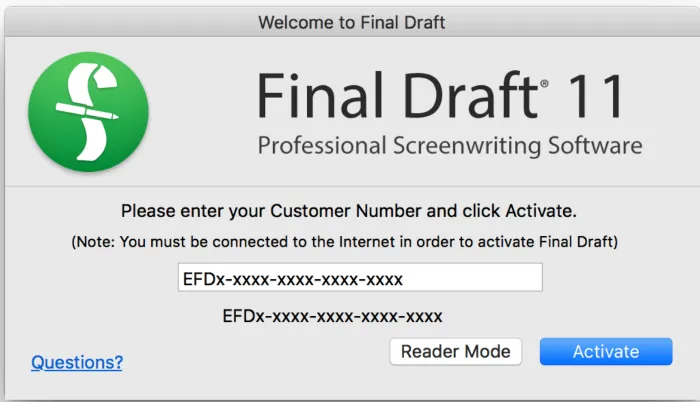
Enter your Customer Number and click Activate. KFDY-YQKU-XVFU-ZUTD-UEQN
NOTE — Sometimes copy and Pasting doesn’t work. If so enter manually.
Click OK. Get to writing.